Showing posts with label Office App. Show all posts

Tuesday, March 24, 2020

How to generate a list of unique entries from an Excel column

Hi,

Do you have an excel column filled with bunch of stuff and you want to have a unique list of items in there. You are in the right place :-)

  1. Select the column letter, copy and paste to another location (new sheet or just somewhere else)
  2. Go to Data | Filter | Advanced Filter. Default, Excel will suggest filtering the list "in-place." We prefer copying the unique records to another location, so we can compare the two lists.
  3. Choose "Copy To Another Location", check the box for "Unique Records Only"  and write B1 in the Copy To editor box.
    How to generate a list of unique entries from an Excel column
  4. Press OK, and Hallelujah ... there you go

Result


Saturday, January 14, 2017

strikethrough shortcut in Excel

Fastest way to produce strikethrough in Excel is to select the text (or the cell) you want to strikethrough, and then simply press Control+5. You can also use that shortcut to remove strikethrough. PERFECT. Meaning you dont have to through the hassle of formatting your cell and then press the underline check box in the Font window that pops up.

Tuesday, March 22, 2016

Shortcut to insert new row in Excel

If you press Alt + I + R, you would simply get a new row inserted right away in your Excel sheet :-)

Tuesday, October 07, 2014

keeping tasks tab in view in Outlook 2013, HOWTO

Tiered of clicking on Tasks to see remaining tasks and of-course forgetting them becuase they are not right in front of your eyes all the time, well then read this post from Microsoft which helps you to keep the tasks always visible in your Outlook 2013
http://office.microsoft.com/en-001/outlook-help/keep-upcoming-tasks-always-in-view-HA102809465.aspx

Wednesday, January 11, 2012

Having two Excel 2010 files beside each other in Windows 7


Wanna have two Excel files beside each other and you can't get it done !!! Well remember you are using Microsoft products, so don't be surprised that they don't manage normally to let you have two windows beside each other. Well but there is a hard way to do this : 
  1. Open the first workbook any way you want. 
  2. Start a second instance of excel. either double click on shortcut to excel.exe on your desktop or through windows start button | run, then type: excel and hit enter. Then file|open the second workbook. 
  3. Now files are separated and you can have them beside each other ... Siiiiiigggggghhhhhhh :-S

Tuesday, November 08, 2011

Next line in a cell in Excel


As it sounds very easy, but if you are visiting this page, you know it is not that easy as it sounds ;-) Usually in such cases Shift+Enter is the right combination, but strangely Microsoft use that for another operation in Excel and instead uses Alt + Enter. Hold Alt key down and press enter.

Monday, October 17, 2011

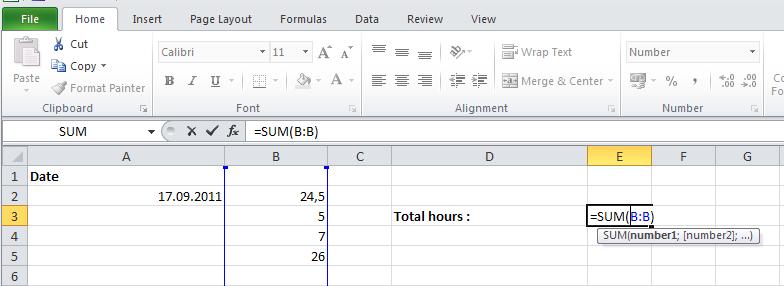
Adding up all values in a column in Excel

To add up all the values from one Excel column in one cell, we only need to do this :


  • click on the cell
  • Write =SUM(COLUMN:COLUMN)
E.g. in following example it is =SUM(B:B), because my numbers are in column B.


Thursday, September 08, 2011

Changing the default font of a document at MS Word 2010


  1. Click on the expansion sign beside the Font panel on your tool bar.
  2. Choose your favorite font for this document and click OK for the changes to effect JUST this document, or Save it as default, for the changes to apply to all future documents.


Wednesday, February 23, 2011

Change product key in Office 2010; HOWTO

  1. Control Panel
  2. Uninstall a Program / Programs & features
  3. Office 2010
  4. Click on Change button
  5. Choose Enter new product key & Press Continute
  6. Type your new product key and also make sure to check the option Attempt to automatically activate my product online to automatically activate your Office 2010 suite. Now click on Continue and then on Install Now.

Sunday, April 11, 2010

Sticky Notes, Ubuntu Desktop


Ubuntu comes in with an integrated Sticky Notes. You just need to right click the top or bottom bar and pick add to panel and add the sticky notes icon will be where you want it. 

After it you need to right click on the icon to make new and you can stick them to the screen. The cool thing about it is that you can go into the prefrences and ask the sticky notes to leave the notes on whichever desktop(Linux can have several desktops) that you created it(my case I have one for coding, one for surfing and one for my robotics stuffs).

* This note is written according to Gnome 2.28.1

Monday, March 15, 2010

How to open ODF files by MS Office

Open Document Format (ODF) is an open standard file format OpenOffice.org and others use. File extensions include .odt (text), .ods (spreadsheet), and .odp (presentation). By default, Microsoft Office does not open these file formats; however, it is possible with a plugin.
In case of Office 2003, Download and install the Sun ODF Plugin.You can downloadthe Sun ODF Plugin from here
In case of Office 2007,
  1. First you need to Install Service Pack 1 for Office 2007.
  2. Install Sun ODF Plugin for Microsoft Office.
  3. Open ODT document via File > Open, or by double-clicking the ODT file and when prompted for the application to open it with, choose Word.
If you don’t have administrator privileges to install software, you can try an online converter such as Zamzar or Media Convert. You can also upload ODT documents to Google Docs orZoho Writer.
If you want to open ODT documents locally but want to stay away from MS Office, try the lightweight, cross-platform Abiword or the full-blown suite of OpenOffice.org.