The following procedure is valid only for Microsoft Office Outlook 2007. You can determine which version you are using by opening Outlook and clicking on Help > About Microsoft Outlook.
The Personal Folder file (.pst / PST) is the place where Outlook stores its data (when you're using Outlook without Microsoft® Exchange Server). Each Personal Folder file contains all of your Outlook folders, including the Inbox, Calendar, and Contacts. You may have a single .pst file (usually called "Internet Folders" or "Personal Folders" in your Folder List), and you may also have an additional .pst file that you use to archive messages (named "Archive Folders"). By backing up these PST files you will be backing up all your Outlook information.
In previous versions of Outlook, it was difficult to locate the folder containing the personal folder files. Developers have made this task much easier in Outlook 2007.
There are two ways to access the location of your data files. In the main menu, you can either click File > Data File Management... or Tools > Account Settings...
If not already selected, click on the "Data Files" tab. You may have a single data file or multiple data files. These "Data Files" are where you store your email messages, calendar, tasks and other items.
Highlight the data file that you are interested in backing up and click on the "Open Folder..." icon. Clicking on this icon will automatically launch Windows Explorer and take you to the location where this data file is stored.
Within the folder you should find an outlook.pst file . Burn this file to a CDROM disk or other backup source. If you archive your email, be sure to backup the archive.pst file as well. Prior to backing up these files, Outlook will need to be closed.
The table below lists key Outlook files that you may want to back up in addition to your Personal Folder(s). You will need to completely exit Outlook prior to copying these files. Depending upon your configuration some or all of these files may be present in your Outlook directory.
Showing posts with label email. Show all posts
Showing posts with label email. Show all posts
Sunday, February 27, 2011


Monday, November 08, 2010
Forward inline, Thunderbird
If the message you want to forward does not appear as inline in the message you are forwarding, then you need to change the following in Thunderbird Options :
Tools > Options > Composition > General tab, switch "As Attachment" to "Inline".
Tools > Options > Composition > General tab, switch "As Attachment" to "Inline".
Tuesday, April 20, 2010
Setting default email program at windows xp
- Right-click on the Start
- Select Properties
- Click on Customize... next to the selected Start menu. At the bottom, you see E-mail and you can choose the e-mail program
- you are done & just click OK
Thursday, March 04, 2010
New virus spreading from Facebook
F-Secure recommends re-installing windows. The virus comes with a fake email and would lead you to become its victim.
Tuesday, September 29, 2009
You dont need to boot to check your eamil, FAST LINUX
Some time ago a company called DeviceVM started to embed Linux into the motherboards of personal computers with the objective to provide an alternative operating system that boots up in a few seconds.
The objective is not to replace the main operating system, which in most cases is still Microsoft Windows, but to enable users to perform common tasks, such as checking email, browsing the Internet, or making a VoIP call immediately after turning on the computer, without the painful process of waiting for the regular OS to be fully up and running.
ASUS has been adopting Splashtop early on and includes it now on most of its motherboards. It is incorporated in the flash memory firmware. Besides the Linux kernel, this includes drivers, networking tools, and various frequently used applications.
Wednesday, September 23, 2009
Setting up gmail account
Got trouble setting up your Google account with default(most of linux distrobutions) Evolution Email client ?
If so, check this tutorial out ...
Tip before reading : My problem was that the gmail account is not just your account name but the full Gmail email address(account@gmail.com)
If so, check this tutorial out ...
Tip before reading : My problem was that the gmail account is not just your account name but the full Gmail email address(account@gmail.com)
Wednesday, August 19, 2009
Lightning for 64 bit Ubuntu
For those of you who are also running a 64-bit linux machine (like me) and want to use the Mozilla Lightning 0.9 Thunderbird add-on, you can find the 64-bit version of this add-on here in the Mozilla release archive. The one that comes from the add-on website doesn't seem to install unfortunately.
If you also want to push your calendar entries back to for instance Google Calender, be sure to use the Provider for Google Calendar add-on. It allows bidirectional access to Google Calendar.
source
Thursday, May 07, 2009
Have your Google calendar @ your email client, Thunderbird
One of the best apps available on Windows is MS Outlook, as a complete suite of apps to organize your life, with Mail, to do lists and a calendar application, which allows for scheduling of meetings, and your time, which will communicate happily with your Windows Mobile or Smartphone Device. Allowing you to know what you are doing while both at your PC or away from it. However, being a commercial application, this can be quite a pricey solution, especially, if your are looking for these features to manage yourself, or maybe just a few others.
However it is possible to archive similar results using Windows, or Linux for free.
Being the owner of an Orange M600 Smartphone, and a Linux user, I spent a long time looking over the Internet, as the best way to get the information shared between my Desktop and my PDA phone. and although there are projects out there , SynCE springs to mind, they are not easy to setup.
So I thought i would look at a different way of resolving the issue.. As always, this is not the only way, its just my way.
Issue
Source
However it is possible to archive similar results using Windows, or Linux for free.
Being the owner of an Orange M600 Smartphone, and a Linux user, I spent a long time looking over the Internet, as the best way to get the information shared between my Desktop and my PDA phone. and although there are projects out there , SynCE springs to mind, they are not easy to setup.
So I thought i would look at a different way of resolving the issue.. As always, this is not the only way, its just my way.
Issue
- Cross Platform Calendar Connectivity Windows, Linux, Windows Mobile
- Easy to use
The key to my resolution is Google Calendar, which can be accessed easily enough, especially if you already have a gMail account. If however you don’t have a gMail account, you can create your self a Google Account here, which will give you access to the Calendar functionality. Its pretty self explanatory. Once this is setup, its time to look at your mail client, obviously you could just use google calendar, via the web browser in Windows or Linux, but it doesn’t display to well on a PDA.. Also the aim here, is to emulate some of the functionality of Outlook, which allows you to have access to multiple mail accounts in one location.The Email Client
The software I use is Thunderbird, Its my preferred Mail client, as i use both POP and IMAP based mail accounts, this mail client doesn’t however come with any built in calendar function, which is a reason, so many people berate it, and state that “calendar functionality is required before this app can move forward”. One of Thunderbirds strengths however, is, like its cousin Firefox, it works on a plugin system. That is, people have written third party modules, which can be used to enhance the functionality of Thunderbird. And I use 2 of these pluginfrom has an old version, Try downloading Lightening fromSetup The Plugins
Lightning Plugin for Thunderbird: http://www.mozilla.org/projects/calendar/lightning/
Google Calendar Provider: https://addons.mozilla.org/en-US/thunderbird/addon/4631Quite simply, Lightning provides a calendar interface for Thunderbird, its part of the Mozilla Sunbird project, and helps provide the Schedule interface which standalone Thunderbird is missing.Quote:
Note: The version of the google provider at this time, requires Lightning version 0.7 or higher, and may not work with the one in the Gutsy repository under add/remove, so use the link above to download the latest version.
The magic here, however is the Provider for Google Calendar plugin, which, unlike just adding the necessary links to Thunderbird, to access Google Calendard, not only provides read access, it provides write access as well..Sync the PDA
Install both plugins, and restart Thunderbird, you will then be shown, a Calendar in the left pane, this calendar has 3 tabs Agenda, Todo and Calendars. To setup Google Calendar, click on the Calendar tab.
Click on the New Button, in the Calendar Tab, and you will be given a choice, you need to select, On the Network. Click on Next, there is an option for Google Calendar, select this.
In the Text bar under the Google Calendar you will need to enter the Link URL which allows you to write to your Account, you can find this, buy logging into the Google Calendar account you created earlier.
Create a new Calendar, or if you already have a celedar created, click on the down arrow next to the calendar. And click on Share this Calendar.
You will be taken to a new page, where you will need to click on Calendar Details on the top of this page.
Then Select the XML button, next to the Private Address, this will allow you the read/write access to the calendar, if you need read only access, or wish to share calendards with read only access, use the XML button next to the Public Tab.
When you click on the XML button a URL will be displayed (i’ve edited the whole strin below for security reasons) Copy this URL , and paste it into the Thunderbird Text box, then click on Next.
Give the Calendar a name which you will use in Thunderbird to identify this calendar, and choose a colour, this is the colour which will identify your Google Calendar, if you are using multiple calendars. Then CLick on Next and then Finish.
You will then see your calendar listed as available. you should now be able to add an event in either Thunderbird, or the wEb Interface, and both will update to show the events. You can set reminders, repeat events, and all the usual type of Schedule details.


The next step is to sync the Calendar with the PDA, this is done using the GMobileSync app for Windows Mobile or Smartphones. it requires .NET CF 2.0 which is available for download from the site, and provides not only read access to they Google Calendar, it also provides write access. This means as well as having PDA based access to your existing schedule, you can provide updates from your PDA to your calendar too. The application requires your login ID and password for the Google Calendar site. and works as far as i’m aware over both Wifi and GPRS networks, however i will confess, with UK prices as they are for Data over GPRS i’ve only tried Wifi. The Sync is a manual operation, and not automatic (yet)Final Thoughts? So what do we have? quite simply a free, Open source based Mail and personal schedulling system, which can be accessed, over muliple platforms, Windows Mobile, Windows and Linux (not sure about OSX). Providing access to multiple mail accounts, using POP or IMAP. Read/Write Calendar access on Desktop, Laptop or PDA.. There is also ToDo list functionality available. and all this can be accessed via a Web Interface. Now thats value for money.. Now if i could get this working with Open Xchange as well… bye bye M$ Exchange..
Source
Monday, May 04, 2009
Limitation in Thunderbird
If you are going to send one email to multiple addresses with one click, you can add all the addresses seprated by comma(,) in one address line and there will be no problem. But there are limitations. Here is Thunderbird official website explaination :
There appears to be a limit of approximately 60 addresses when sending messages if you enter each address separately. However, if you use lists (mail distribution lists) for most of the addresses any limit is imposed by whatever SMTP server you use.
You can receive messages sent to multiple addresses in the same mailbox. Any limitations would be due to your e-mail provider.
Friday, April 17, 2009
How do I minimize Mozilla Firefox or Thunderbird to the tray?
I work as an department engineer @ university of Oslo and my Thunderbird application should be open all the time so I can answer if someone has sent me an email. A while ago I was thinking 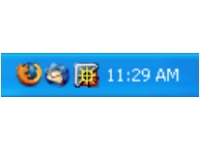 if it is possible to do something to minimize Thunderbird to traybar and spare some space on the task bar ... Well I searched and there were a good number of developers who had already done it ... Thanks to them, here is the way to do it : You have to download an AddOn called minimizetotray and add it on your Thunderbird. It also seems like there is a similar AddOn which works on Firefox as well but I have NOT tried it as I prefer my Firefox on the taskbar. After it you have following ways to minimize your dear Thunderbird to tray and spare some space :-)
There are multiple ways exist for minimizing Firefox and Thunderbird to the tray. You can use whatever works best for you. The most common method is to right-mouse click on the minimize button in the top right hand corner of the window. Or you can select from the menu File->Minimize to Tray. Or you can use the keyboard shortcut for Firefox, Ctrl+Shift+M. If you want to always have Firefox and Thunderbird minimized to the tray instead of the taskbar, select that checkbox in the extension's options. If you want to minimize all open Firefox windows, middle click on the minimize button, (or CTRL+right-mouse click for those without middle buttons).
 if it is possible to do something to minimize Thunderbird to traybar and spare some space on the task bar ... Well I searched and there were a good number of developers who had already done it ... Thanks to them, here is the way to do it : You have to download an AddOn called minimizetotray and add it on your Thunderbird. It also seems like there is a similar AddOn which works on Firefox as well but I have NOT tried it as I prefer my Firefox on the taskbar. After it you have following ways to minimize your dear Thunderbird to tray and spare some space :-)
There are multiple ways exist for minimizing Firefox and Thunderbird to the tray. You can use whatever works best for you. The most common method is to right-mouse click on the minimize button in the top right hand corner of the window. Or you can select from the menu File->Minimize to Tray. Or you can use the keyboard shortcut for Firefox, Ctrl+Shift+M. If you want to always have Firefox and Thunderbird minimized to the tray instead of the taskbar, select that checkbox in the extension's options. If you want to minimize all open Firefox windows, middle click on the minimize button, (or CTRL+right-mouse click for those without middle buttons).
Tuesday, March 10, 2009
IMAP vs. POP
With IMAP, the master copy of your mail is on the server. Though mail is also downloaded to your personal computer and placed into a local copy of your IMAP server folder structure, it is not necessarily a complete copy at any given time. This is very different from POP. In POP, if you see a summary line for a message in your Inbox, the entire message is there on your personal computer, and you don't have to be connected to the email server to see it. But with IMAP, the summary line may be the only part of the message that has been downloaded to your personal computer. When you ask to see the message, it will be downloaded to your personal computer and then displayed to you, and the copy will remain there on your personal computer till you delete the message in your Inbox.
Source : http://www.stanford.edu/services/imap/firstday.html
Source : http://www.stanford.edu/services/imap/firstday.html
Subscribe to:
Comments (Atom)